
After sharing three blog posts about measuring the AI impact, how it redefined our roles, and the lessons learned from our failures, we kept hearing the same question: “Okay, but how do you actually use Claude Code day-to-day?” It’s time to disclose the more practical steps of our process.
We’ve spent the last few months refining our workflow, discovering shortcuts, and building custom tooling around Claude Code. Some of these tips came from Anthropic’s documentation, others from our own experimentation, and a few from pure (good) laziness. Here’s an overview of what we’ve learned.
Set Up Your Environment Right
Before diving into the fancy stuff, Claude Code’s effectiveness depends heavily on your local setup. Having the right tools from the start will unlock significant efficiency gains.
Install gh and rg
The GitHub CLI (gh) and ripgrep (rg) might seem like nice-to-haves, but they’re actually game-changers for Claude’s efficiency. With these tools installed, Claude can search through code faster, interact with GitHub directly, and navigate repositories without asking for permission to fetch URLs.
# macOS
brew install gh ripgrep

# Linux
sudo apt-get install gh ripgrep
With these tools on your system, Claude will be more efficient, leveraging them to optimize its own processes. A useful habit: pay attention to which CLI tools Claude Code attempts to use — they’re usually worth installing.
Connect the Right MCPs
Model Context Protocol servers extend Claude’s capabilities beyond just code.
Think of MCP like a USB-C port for AI applications. Just as USB-C provides a standardized way to connect electronic devices, MCP provides a standardized way to connect AI applications to external systems.
Here are the MCPs we use daily across the team.
Linear MCP: Ticket Management Without Context Switching
We use Linear as our context database — the single source of truth for all our engineering work. We’ll dive deeper into this in a future post, but the short version is that we’ve heavily invested in our Linear integration. With custom commands like /create-ticket and /ticket PLA-123, we can create, update, or read tickets instantly without ever leaving our terminal.
To setup this MCP, add the following into your ~/.mcp.json file:
{
  "mcpServers": {
    "linear": {
      "command": "npx",
      "args": ["-y", "mcp-remote", "https://mcp.linear.app/mcp"]
    }
  }
}
We use the /mcp command to go through Linear’s authentication flow rather than managing API keys manually. Check out Linear’s MCP documentation for more details.
Example usage:
- “Create a ticket for fixing the React hydration mismatch on the dashboard page”
- “Check if there’s already a ticket for the 404 error when users access /api/webhooks with invalid signatures”
- “Show me all tickets related to authentication Dockerfile performance issues”
PostgreSQL MCP: Direct Database Access for Query Generation
When debugging issues or building complex queries, we need to check database state and schema. The PostgreSQL MCP lets Claude query the database directly, examine schemas, and generate SQL queries for us.
Why not just let Claude infer the schema from our code? Because our database schema and the actual data often tell a different story. Migrations might have run, data might have drifted, or indexes might be missing. With direct database access, Claude can see the real state — column types, constraints, existing data patterns, and performance characteristics — making it both more efficient and more reliable.
We connect Claude only to our local database. Our SOC2 compliance requirements mean that sending PII to third-party services is highly restricted — it’s definitely not something we do by default. Claude generates and tests queries locally, then we review them before anyone with the appropriate access level runs them on staging or production. This keeps our data secure while still letting us leverage Claude’s query generation capabilities.
{
  "mcpServers": {
    "postgres": {
      "command": "npx",
      "args": ["-y", "@modelcontextprotocol/server-postgres"],
      "env": {
        "DATABASE_URL": "postgresql://user:password@localhost:5432/dbname"
      }
    }
  }
}
Note: The DATABASE_URL uses our local database credentials, ensuring no production or staging data is ever sent to Anthropic’s servers.
Example usage:
- “Write a query to spot users with duplicate email addresses in the database”
- “Retrieve the aggregate drifts for all our event-sourced tables”
- “Who is the oldest user who owned only 3 cars in Florida state?”
Context7 MCP: Up-to-Date Library Documentation
Context7 provides Claude with sharp, up-to-date documentation for the libraries and frameworks we’re using. Instead of relying on outdated training data, Context7 fetches current, version-specific documentation straight from official sources and injects it into Claude’s context. This is particularly valuable for fast-moving libraries like Next.js, React, or Tailwind where API changes frequently.
{
  "mcpServers": {
    "context7": {
      "type": "http",
      "url": "https://mcp.context7.com/mcp"
    }
  }
}
Example usage: “Check Context7 MCP to optimize the display of my React Admin policies table”
Playwright MCP: E2E Testing Made Simple
Writing end-to-end tests is tedious. Describing what you want to test is easy. With the Playwright MCP, we just describe the scenario and Claude handles all the Playwright boilerplate, selectors, and assertions.
{
  "mcpServers": {
    "playwright": {
      "command": "npx",
      "args": ["-y", "@playwright/mcp-server"]
    }
  }
}
Example usage: “Write an E2E test that logs in, creates a project, and verifies the project appears in the dashboard”
Keeping Everyone in Sync
The real power move? Commit your /.mcp.json configuration to your project repository. Everyone gets the same setup automatically when they clone the repo, and new team members become productive from day one.
Plan Mode: The Real Game Changer
Plan mode is one of the most powerful features in Claude Code. Instead of Claude immediately jumping into writing code, it thinks through the entire approach first, outlines the steps, asks clarifying questions, and waits for your approval.
We’re using plan mode for almost everything now. The difference is night and day when working on complex features. Claude breaks down the work, identifies potential issues, and we can course-correct before any code is written.
To enable plan mode, hit SHIFT + TAB twice when starting your prompt.
This is where the real engineering happens. The planning phase is where we debate with Claude about the best implementation approach. From these discussions often emerge scenarios we didn’t imagine — edge cases, performance considerations, alternative architectures. It’s not rare for these planning sessions to take 30+ minutes. This is where Claude becomes a true peer engineer, and these collaborative discussions often lead to better solutions than we would have designed alone.
Thinking Depth: When to Think Harder
Claude Code supports different thinking modes, and understanding when to use each has saved us countless hours of back-and-forth:
- No keywords (default): Quick tasks, straightforward fixes
- “think”: Standard complexity, most daily work
- “think hard”: Complex refactoring, architectural decisions
- “ultrathink”: Novel problems, critical system changes
The trade-off is clear: deeper thinking modes consume more tokens and take longer to respond. But we’ve found that being explicit about thinking depth upfront prevents those frustrating moments where Claude gives a surface-level answer to a deep problem. For a complex database migration, “think hard” gives you a more thorough analysis and is worth the extra time. For fixing a typo, the default is perfectly fine — no need to waste tokens on simple tasks.
Automation: Make Claude Work Smarter
Auto-Format with Hooks
One of our favorite discoveries was the hooks system. We’ve configured a post-tool-use hook that automatically runs Prettier after every file edit:
{
  "hooks": {
    "PostToolUse": [{
      "matcher": "Edit|MultiEdit|Write",
      "hooks": [{
        "type": "command",
        "command": "jq -r '.tool_input.file_path' | { read file_path; pnpm prettier --write \"$file_path\" 2>/dev/null || true; }"
      }]
    }]
  }
}
This lives in our .claude/settings.json file. Now every code change Claude makes is automatically formatted, and we never have to think about it.
Leverage Allowed Commands
The .claude/settings.json file also lets you pre-approve certain commands. We’ve added common operations like pnpm install and read-only commands like find, cat, and git log. This means Claude doesn’t need to ask permission every time it needs to run tests or check git history.
{
  "allowedCommands": [
    "pnpm install",
    "pnpm test",
    "find *",
    "cat *",
    "git log *"
  ]
}
Commit this file to your project repository, and your whole team benefits.
Keep Claude in the Right Directory
Here’s an undocumented but crucial setting: the CLAUDE_BASH_MAINTAIN_PROJECT_WORKING_DIR environment variable. Without it, Claude can get lost navigating your file structure, running commands from random directories instead of your project root. This is especially problematic in monorepos where Claude might end up several directories deep.
Add this to your shell configuration (.bashrc, .zshrc, etc.):
export CLAUDE_BASH_MAINTAIN_PROJECT_WORKING_DIR=true
Now Claude always runs commands from your project root, preventing those frustrating “file not found” errors when it tries to run pnpm test from three directories deep.
Context Management: Keep Claude Focused
Context management is probably the hardest part of using LLMs effectively. Get it wrong, and Claude becomes confused, forgets important details, or starts hallucinating. We’ve learned to be particularly careful about it. The TL;DR: keep context as small as possible.
Clear often. Long conversations lead to confused Claude. We’ve adopted a habit: after completing a task, /clear the context. Same when a task runs for too long — that’s your signal to wrap up, create a checkpoint, and start fresh. It’s like giving Claude a clean slate to tackle the next problem effectively.
Tickets are your source of truth. We put as much context as possible in our Linear tickets — implementation notes, technical constraints, links to relevant code. Claude creates these tickets for us via a /create-ticket command based on our discussion. When starting a new task, Claude can read the entire ticket and understand what needs to be done without us having to repeat ourselves.
Checkpoints for major accomplishments. After every major accomplishment, we create a checkpoint using our /checkpoint command. This adds a comment to the ticket with the current state and decisions made. When the context gets too large, we simply /clear and ask Claude to read the ticket again — Claude sees only the current state and the final goal, resulting in smaller context and more efficient responses.
Be Lazy (The Right Way)
Some of our best productivity gains come from pure laziness:
Natural Language Search
Need a PR link? A Linear issue? Just ask naturally. Instead of opening GitHub, clicking Pull Requests, finding your PR, and copying the URL, just type pr link and Claude retrieves it for you. Same for Linear issue about the migrator Docker build or any other search. Claude understands what you’re looking for and fetches it almost instantly.
Claude as First Line of Defense
Hit an error? Don’t jump on it immediately — paste the error into Claude Code first. We’ve found that Claude can resolve about 90% of our error messages immediately, especially for common issues like dependency conflicts or configuration problems.
Even when Claude can’t solve it outright, it clears a significant portion of the debugging work. We’ve been regularly surprised by how fast it is to troubleshoot technical errors — pipeline issues, AWS missing permissions, code conflicts, and more. Claude helps you understand what’s actually broken before you start digging.
Git Operations
Running git bisect or git rebase manually is tedious. Let Claude handle it instead. These operations are perfect for AI: they’re well-defined, repetitive, and Claude won’t get bored halfway through.
Claude makes rebasing particularly smooth by summarizing conflicts in plain English. For example:
mainadded Swagger annotations on the API route, and you updated the authentication middleware annotation. What do you want to do? Merge them both?
We just say yes, and it’s done. No more staring at conflict markers trying to decipher what actually changed.
Miscellaneous
Cross-Repository Work
Here’s a trick we discovered recently: Claude can work across multiple repositories in the same session. Need to check something in another codebase?
Check in ~/dev/api-service for how we handle authentication
Claude will look there and can even make edits across repositories. This is faster than switching contexts or opening multiple Claude sessions.
Use Claude for Non-Code Tasks
We’ve extended Claude Code beyond just coding. For instance:
- Our
/dailycommand generates a summary of completed work for team syncs. - We’ve asked Claude to scan our
#tech-intelligenceSlack channel and provide a list of links to tweet from our X account. - It checks AWS resources that aren’t used anymore.
It even helped speed up a Windows 11 machine by identifying what slowed everything down:
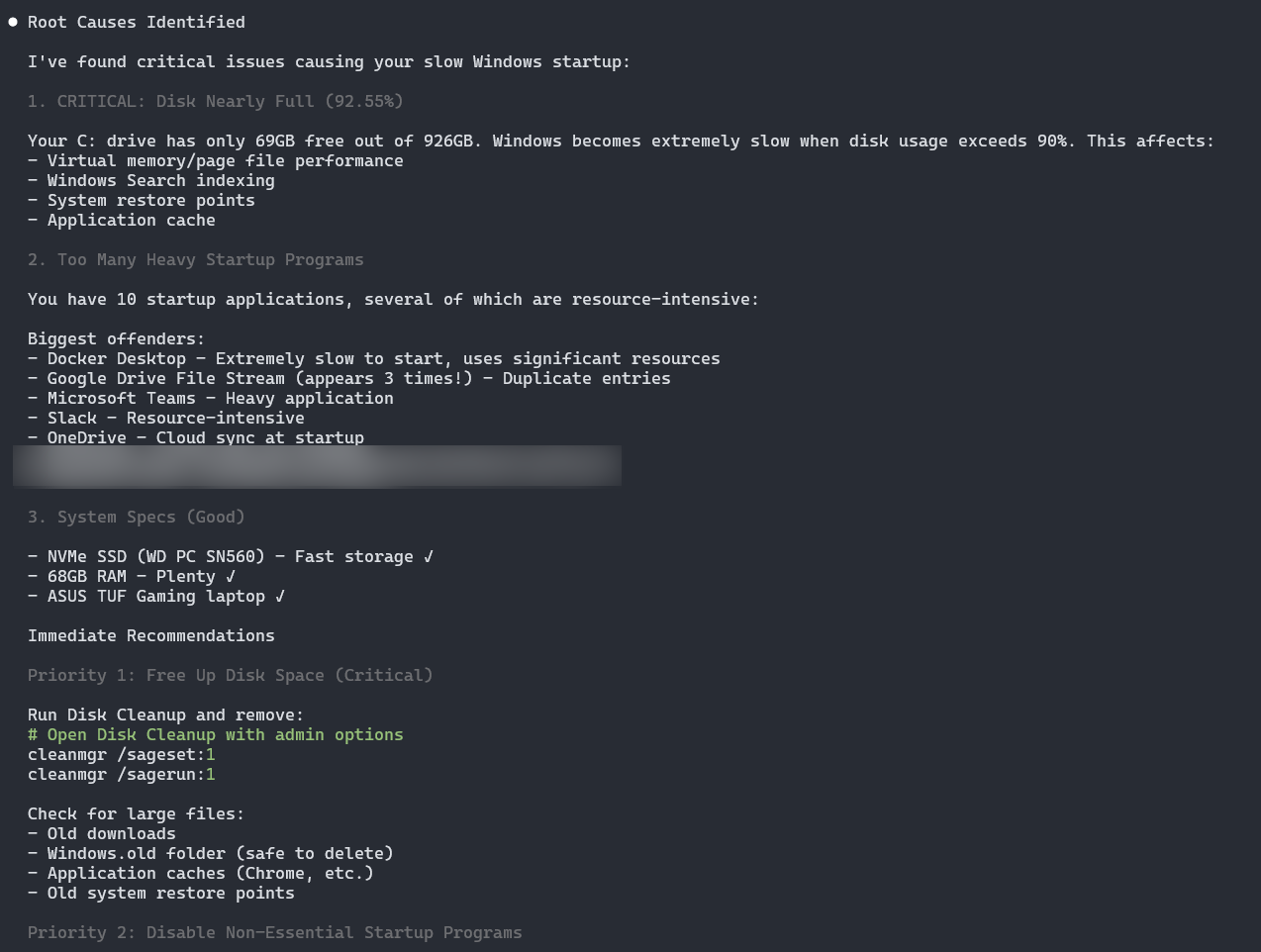
The pattern: if it’s text-based and somewhat repetitive, Claude can probably help. And Claude Code isn’t limited to engineers — Product, Finance, or anyone on the team can benefit from its capabilities.
Drag and Drop Files
Small detail, but worth mentioning: you can drag and drop files directly into Claude Code. Need Claude to analyze a CSV? Drag it in. Got a config file from another project? Drop it in. Working from a design mockup? Drop the image and Claude can help you implement it.
One limitation: you have to save content into a file first — you can’t just paste media directly from your clipboard.
Key Takeaways
- Foundation matters: Install the right tools (
gh,rg) and MCPs before diving deep - Plan mode changes everything: Let Claude think through the approach before coding
- Automate the repetitive: Hooks and custom commands eliminate tedious work
- Context is king: Clear often, use tickets as source of truth, leverage checkpoints
- Be lazy strategically: Let Claude handle git operations, error messages, and cross-repo checks
- It’s still evolving: We’re constantly finding new ways to work with Claude Code
These tips represent months of experimentation and refinement. Some came from reading documentation, others from watching how our team naturally started using Claude Code. The best workflows are the ones that disappear into your process — you stop thinking about “using AI” and just get work done more efficiently.
We’ll be publishing dedicated posts on custom commands and skills soon — both are massive productivity levers that deserve their own deep dives.
What tricks have you discovered? We’re always looking for new ways to optimize our workflow.
About the author
